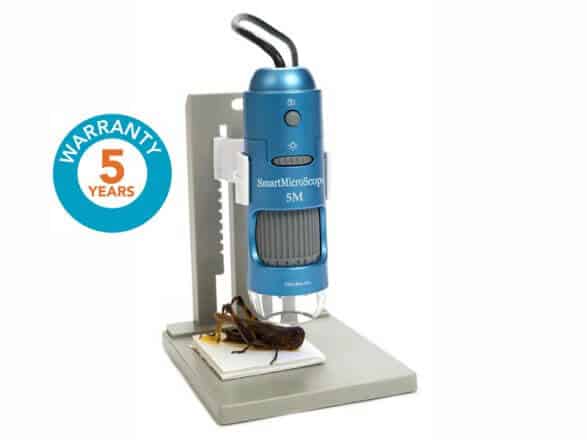

| 3. The Video Setup Window will open. 4. You can now change the Full Screen Mode to A. 4:3 for computer monitor B. FULL to fill the screen with the image C. ICON to display the large image and toolbars. NOTE: To have the software open in full screen mode, check the “Full Screen Mode” box. The PC software that comes with the SmartMicroScope, SmartMicroScope 5M, SmartMicroScope 500 & SmartMicroScope 5M-500 are very similar and function the same. |